How to get an ASTOS trail license
This page outlines the steps for obtaining an ASTOS trial license. It is free of charge and can typically be issued within 1–2 business days, if the procedure described below is followed.
Note: ASTOS is subject to German export control regulations. To ensure a smooth and timely approval process, please follow the procedure as described. Users in Japan are not required to obtain an individual export license, so no additional action is required in this regard.
ASTOS customer portal
All ASTOS license administration as well as software download are handled through the ASTOS customer portal located in Germany. Unfortunately, the portal does currently not provide a Japanese interface, only English. We hope that the instructions below will help you complete the process smoothly. Should you encounter any difficulties or have any questions, please do not hesitate to contact us at any time by email () or through our web interface.
Steps to obtain an ASTOS trial license
Please note that these three steps only need to be completed once. Upgrading from a trial license to a full license is straightforward and can be accomplished with a single click, as the trial and full versions are technically identical.
Step 1: Create a user account on the ASTOS server
■ Create a user account
Please create a user account on the Astos.de user portal:
https://www.astos.de/create_account
■ Initiate a trial request
Next please initiate a trial request under the following link:
https://www.astos.de/your_astos/license_request
ASTOS offers several software packages (referred to as “features”). If you are unsure which features to select, we can discuss your requirements beforehand. Alternatively, you may simply select the core ASTOS module to get started as quickly as possible, and additional features can be added later.
Important: Please inform us HERE (or ) of your trial license request in parallel so that we can proactively coordinate with our colleagues in Germany and help accelerate the approval process.
Step 2: Receive license information and download the software
You will receive three emails from ASTOS containing different license credentials. Examples of these numbers are shown below. Please make sure to store these emails as the information may also be required for future software upgrades.
|
↓ number |
↓ example |
|
Installation serial ID: |
ASTOS 10: a1bcd23ed4 |
|
User ID: |
024680 |
|
Access Code: |
123456ab |
|
License Serial Number: |
12345 |
|
Entitlement ID: |
AB-CDEF-1-23GH-J45K-67L8 |
Step 3: Install the software and activate the license
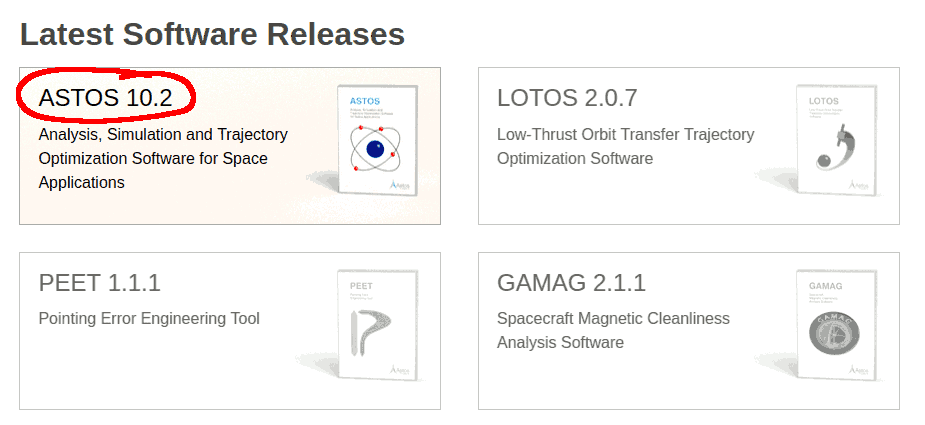
After logging in to the ASTOS customer portal (https://www.astos.de/login), scroll down until you see the link to download the ASTOS software (see image below).
On the ASTOS download page, you may see multiple modules (so-called ‘features’) available for download. Please ensure that you select the ASTOS software package. Verify that the correct software version has been selected, then click the blue ‘Download’ button (see the image below).
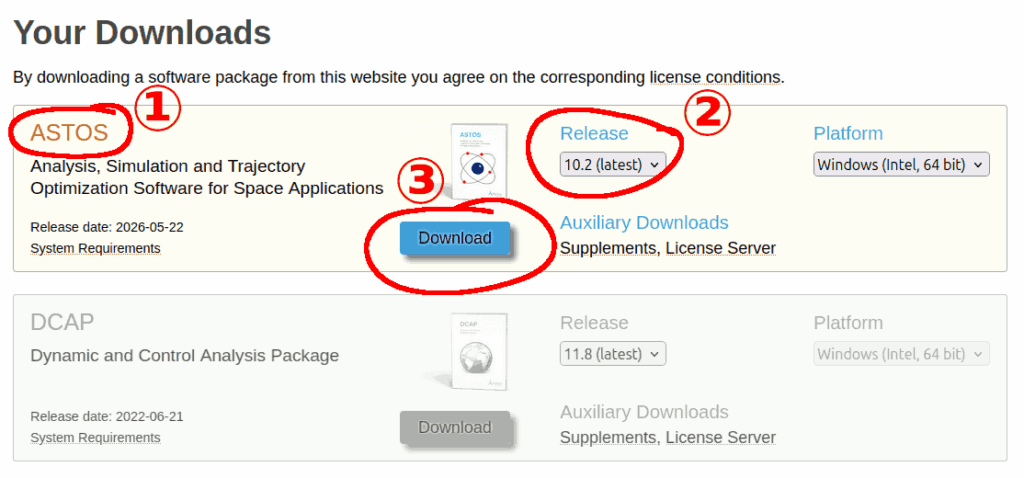
The installation file is currently approximately 850 MB in size. Depending on your internet connection speed, the download may take up to one hour.
Install the software
Once the download has been completed, please run the installer file (example: Setup_ASTOS_10.2.0.exe) on your Windows PC. During the installation process, you will be prompted to enter the Installation Serial ID.
Activate the license
After the installation has been successfully completed, launch ASTOS and activate your license. To do so, you will need the license information provided in Step 2 and an active internet connection.